Set your chair and feet first, then match your desk to elbow height, then position the monitor an arm’s length away with the top at or slightly below eye level. That single sequence resolves most of the discomfort remote workers report at home. Pair it with the 20-8-2 movement cycle and a short audit, detailed below, and you can correct the bulk of a poor setup in one sitting.
TL;DR:
- Adjust your chair, desk, and monitor in sequence to prevent postural compensations and ensure ergonomic alignment for long-term comfort.
- Use tools like height presets and timers to implement the 20-8-2 movement cycle for reducing static sitting and improving posture throughout the day.
- Keep lighting glare-free and organize reach zones so frequently used items are within easy elbow reach, reducing strain during work hours.
- Correct common mistakes such as monitor height issues, clutter under the desk, and static posture, which can lead to discomfort or injury over time.
- Consider custom furniture or built-ins when standard setups cannot accommodate room shape or ergonomic targets, ensuring long-lasting, personalized solutions.
Table of Contents
- Quick ergonomic layout checklist you can complete in 15 to 30 minutes
- Detailed adjustments for chair, desk, monitor, and input devices
- Sit-stand strategy and movement at home
- Lighting, glare control, accessories, and reach-zone layout
- Common setup mistakes and quick troubleshooting steps
- When to choose custom carpentry or built-ins
- Author perspective: budget, adjustability, and longevity
- Wood Made Illinois: ergonomic home office renovation and built-ins
- Sources
- FAQ
Quick ergonomic layout checklist you can complete in 15 to 30 minutes
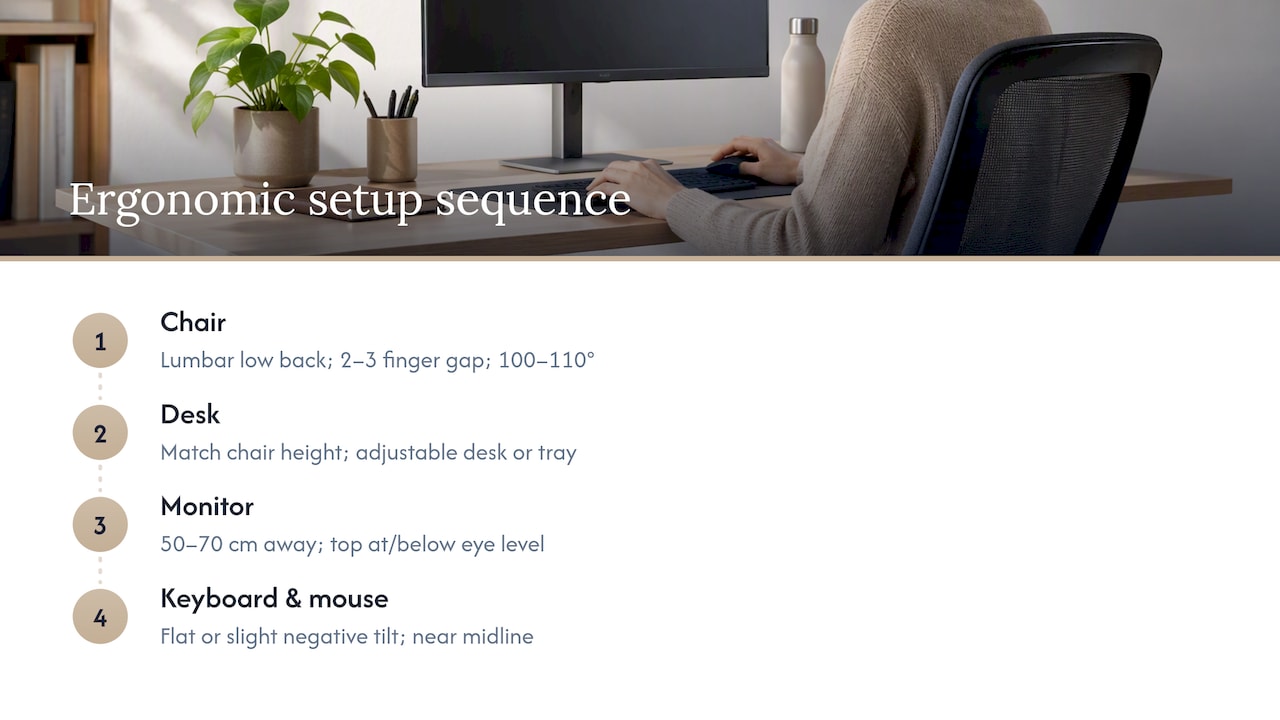
The adjustment order matters more than any single piece of furniture. Work through the sequence below in order, because each step depends on the one before it.
- Chair: feet flat on the floor, knees near 90 degrees, lumbar support filling the small curve with your back.
- Desk: surface height lets your elbows rest near 90 to 100 degrees while typing.
- Monitor: top of the screen at or slightly below eye level, positioned about an arm’s length away.
- Keyboard and mouse: flat or tilted slightly negative, close enough that your elbows stay near your sides.
- Accessories: add a footrest, monitor riser, or keyboard tray only if the first four steps still leave a gap.
A few fast fixes solve most remaining problems:
- Stack books or add a riser if the monitor sits too low.
- Use a footrest if your feet dangle after the chair is set correctly.
- Call a carpenter or ergonomics consultant if the desk itself is the wrong height or shape for the room.
Detailed adjustments for chair, desk, monitor, and input devices
Ergonomics works as a chain reaction. Setting the chair first, then the desk, then the monitor, then the input devices prevents the common trap of compensating for one bad adjustment with another, a pattern Cornell’s ergonomics guidance warns causes postural drift over a workday.
Chair. Lumbar support should sit in the curve of your lower back, not your mid-back. Seat depth should leave two to three finger-widths between the back of your knee and the seat edge. Recline the backrest to roughly 100 to 110 degrees rather than sitting bolt upright, and set armrests so your shoulders stay relaxed, not hiked up.
Desk. Seated typing height usually differs from standing writing height, which is why keyboard trays and height-adjustable desks exist. A sit-stand converter works for renters or shared spaces; an electric desk with memory presets suits anyone switching positions often. Add a footrest only after the chair and desk are correctly matched.
Monitor. Keep the screen 50 to 70 centimeters (20 to 28 inches) away, with the top of the display at or slightly below eye level, matching Cornell’s recommended downward gaze. Multi-monitor setups should align both screens at the same height and distance to avoid repeated neck rotation.
Keyboard and mouse. Keep both flat or at a slight negative tilt, and resist the urge to flip up the keyboard’s fold-out legs, which force the wrists into extension. Keep both devices close to your body, near the midline, so your elbows stay tucked rather than reaching.
Pro Tip: Adjust your chair and desk before you touch the monitor. Moving the screen first almost always hides a height problem instead of fixing it.
Sit-stand strategy and movement at home
The 20-8-2 rule, developed at Cornell, calls for 20 minutes sitting, 8 minutes standing, and 2 minutes moving, repeated through the workday to interrupt static posture. A 2018 Cochrane review found that sit-stand desks reduced sitting time by about 1 to 2 hours a day and improved neck and back pain among office workers, though the exact timing can be personalized.
One of the most reliable ways to maintain this rhythm at home is pairing it with tools that remove the need to remember it yourself:
- Save height presets on an electric desk so switching positions takes one button press.
- Use a timer app like Stretchly to prompt standing and movement breaks automatically.
- Block short walks on your calendar for the two-minute movement portion instead of skipping it.
Standing for long, static stretches defeats the purpose. Alternate postures rather than replacing one static position with another, and adjust the cadence to whatever your body tolerates on a given day.
Lighting, glare control, accessories, and reach-zone layout
Combine ambient room light with a focused task lamp rather than relying on overhead lighting alone, which tends to create glare on glossy screens. Angle the monitor away from windows, add blinds or shades, and choose a matte screen finish where possible to cut reflections.
Reach-zone layout matters as much as lighting. Keep anything you touch every few minutes, keyboard, mouse, phone, within easy elbow reach, and move occasional-use items like reference binders or chargers farther out.
- Use a document holder near the monitor to avoid repeated neck bending.
- Keep a headset or phone within arm’s reach rather than stretching across the desk.
- Add an anti-fatigue mat if you stand for extended periods.
- Choose furniture with rounded edges, a detail OSHA’s workstation checklist flags to reduce contact stress on forearms.
Common setup mistakes and quick troubleshooting steps
A few repeat offenders undo otherwise good equipment. A monitor set too high strains the neck upward, while one set too low curls the spine forward. A keyboard sitting too low, often on a desk with no tray, forces wrist extension that adds up over a workday.
- Monitor too high or too low: adjust with a riser or by lowering the desk, not by slouching.
- Items stored under the desk: clear the footwell so legs and feet move freely.
- Hours in one static posture: set a reminder tied to the 20-8-2 cycle.
Pro Tip: Take a photo of yourself seated at your desk from the side. A still image reveals neck and shoulder posture far more honestly than how the position feels in the moment.
When to choose custom carpentry or built-ins
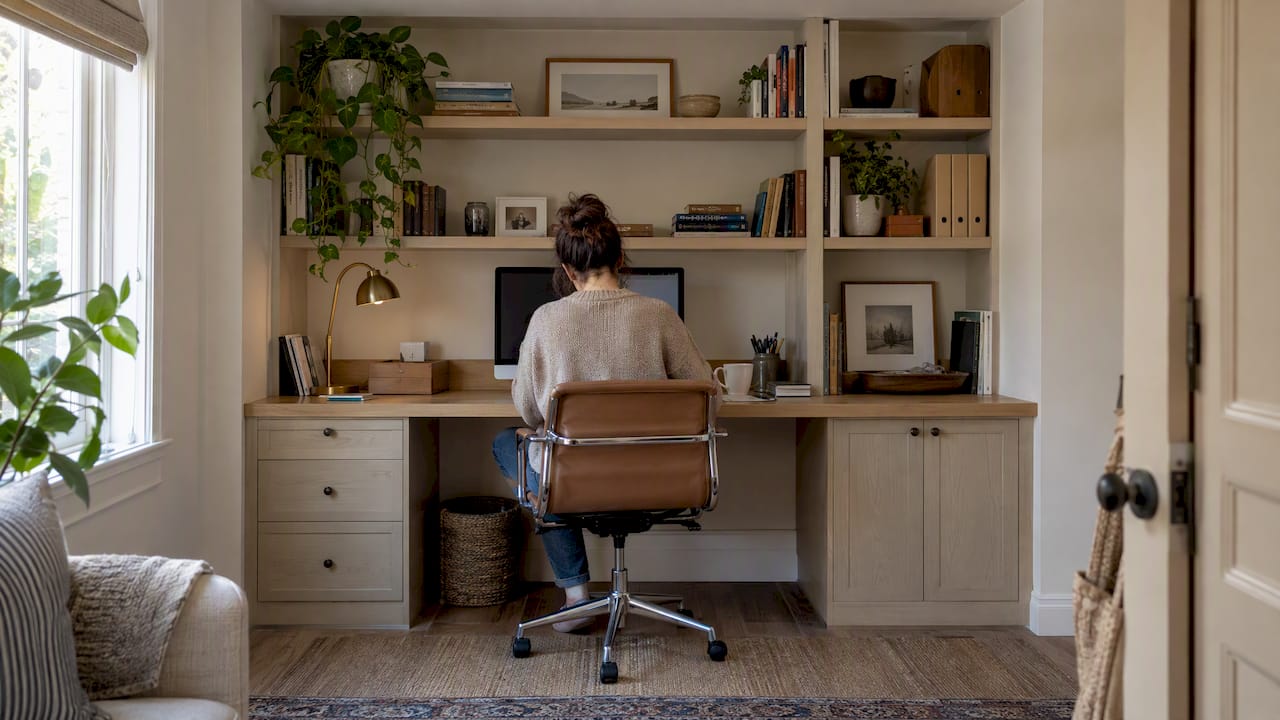
Standard furniture solves most ergonomic problems, but not all of them. Awkward room geometry, a shared living space doubling as an office, or a desk that needs to hide cables while keeping everything within reach often calls for something built to the room rather than bought off a shelf. This is where Wood Made Illinois sees recurring requests from remote workers in Central Illinois.
Common custom interventions include:
- A fixed-height built-in desk set precisely to the user’s elbow height, eliminating guesswork.
- A recessed monitor shelf that keeps the screen at the correct distance without eating desk space.
- An integrated keyboard tray paired with routed cable channels to keep the primary reach zone clear.
- Rounded-edge finishes on desk surfaces, in line with contact-stress guidance from workstation checklists.
- Built-in storage positioned to keep daily tools close and seasonal items out of the way.
Readers with an oddly shaped nook, a closet-turned-office, or a desk that never quite fit the room often find this the more durable fix, worth comparing against our home office makeover examples before committing to new furniture.
Author perspective: budget, adjustability, and longevity
Posture comes before price. A properly adjusted secondhand chair beats an expensive one set up wrong, and most layout problems cost nothing to fix, just time and the checklist above. Furniture upgrades matter most when the room itself works against you, which is when a local installer can evaluate whether a built-in solves what adjustable furniture cannot.
— Wood
Wood Made Illinois: ergonomic home office renovation and built-ins
A home office that still fights your posture after you have tried every adjustment usually has a layout problem, not a furniture problem. Some carpentry businesses offer services suited to exactly this situation:

- Home Office Renovation: full layout redesign built around your room’s actual dimensions.
- Built In – Built to Order: fixed desks, shelving, and storage sized to ergonomic targets rather than standard retail dimensions.
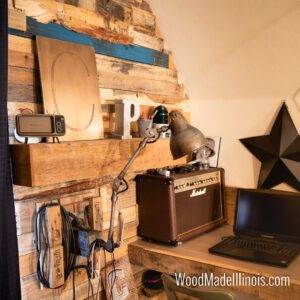
- Pallet Wall Accents: available for rooms needing character without a full renovation budget. Prices vary; please see the company’s site for current pricing.
A typical next step starts with a consultation and on-site measurement, followed by a design proposal and an estimate, with a focus on quick turnaround suitable for budget-conscious clients. Readers weighing a custom desk against standard furniture can also browse the custom desk portfolio or, for compact rooms, this guide to maximizing small spaces before reaching out through the main site to request a quote.
Sources
- CUergo: Computer Workstation Ergonomics Guidelines
- OSHA eTools: Computer Workstations – Checklists – Evaluation
- Cochrane Library: sit-stand desk review
FAQ
What is the 90-90-90 rule in ergonomics?
Definitions vary across sources, but the common version calls for roughly 90-degree angles at the hips, knees, and elbows while seated. It overlaps closely with the chair and desk targets described above: feet flat, knees near 90 degrees, elbows near 90 to 100 degrees at the keyboard.
How do I make my home office more ergonomic?
Start with the adjustment sequence: chair, then desk, then monitor, then keyboard and mouse. Set the monitor an arm’s length away with its top at or slightly below eye level, and add the 20-8-2 movement cycle to break up static sitting.
What is the 20-8-2 rule for standing desks?
The 20-8-2 rule calls for 20 minutes sitting, 8 minutes standing, and 2 minutes moving, repeated throughout the day, a cadence developed at Cornell. It is meant as a flexible rhythm rather than a rigid schedule, so personalize the timing to what your body tolerates.
What is the best layout for a home office?
There is no single best layout, but the strongest setups share the same bones: a correctly adjusted chair, a desk matched to elbow height, a monitor at arm’s length, and frequently used items kept within easy reach. When a room’s shape or size limits those targets, a custom built-in desk or shelving solution can close the gap that standard furniture leaves open.